 OberBuilt Inventory
Features
What OberBuilt Inventory does, all in one plan.
Bills of materials, builds and shortages for QuickBooks Online Plus and Advanced. There is one plan, so every feature below is in it.
Set up once
Bills of materials, as deep as you need
Write each bill of materials once, from the items already in your QuickBooks Online company, and every build after that uses it.
- Sub-assemblies inside sub-assemblies, at any level.
- An estimated rolled-up cost for each one. Settings chooses which cost the estimate uses.
- Groups, and groups inside groups, to keep a long list in order. An item can have more than one recipe, with one marked as the default.
In QuickBooks Online: Saving a bill of materials writes nothing to your books.
Set up once
Output per run, scrap and batch sizes
Describe how your shop really makes things.
- A bill of materials can make more than one unit per run, with component quantities per run.
- Each line can allow for scrap as a percentage, or use the item’s default.
- Mark an item as whole units only, or give it a batch size, and builds respect it.
In QuickBooks Online: These settings change the quantities a build uses. They are not written to your books.
Plan the work
Build plans for every level at once
Choose what you want to make. A build plan works out every sub-assembly it needs and makes a planned build for each one.
- Plan one bill of materials or several together.
- Use stock first, build everything, or use stock only.
- Preview the plan as a tree or in build order before you save it.
In QuickBooks Online: A plan writes nothing to your books until one of its builds is completed.
Plan the work
See shortages before they stop you
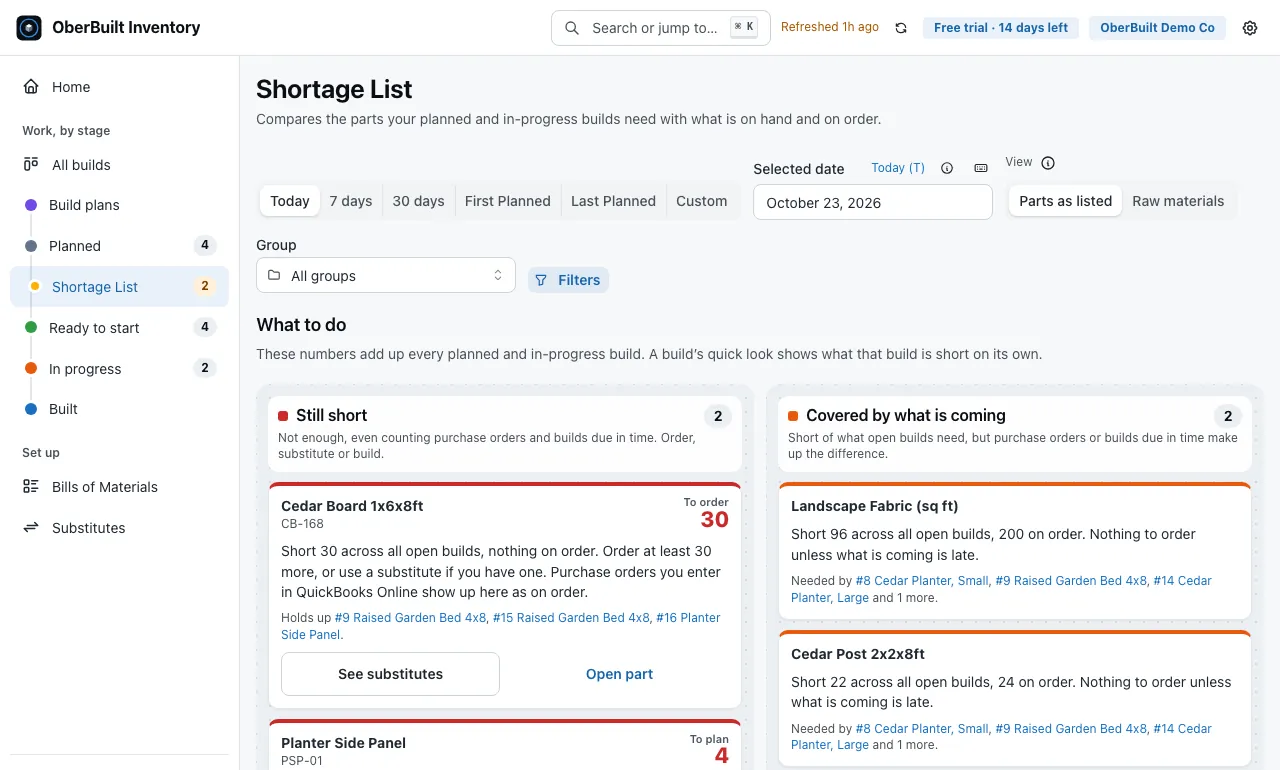
Across planned and in-progress builds, net of open purchase orders due in time.
- See each short part, by how much, and which builds need it.
- View parts as listed on each bill of materials, or as raw materials.
- Look ahead to a date, to see what will be short by then.
In QuickBooks Online: Quantities and open purchase orders are read from your QuickBooks Online company. Nothing is written.
Build
Substitutes when a part runs short
Name the items that can stand in for a part, one for one, in the order you prefer.
- When a build is short of a part, choose a substitute as you start it.
- See each substitute’s free stock and estimated cost difference before you choose.
- Completed builds record the substitutions set aside at Start, and the builds export lists them.
In QuickBooks Online: The completed build’s bill takes the substitute out of stock, not the part it replaced.
Build
Builds and un-builds at FIFO cost
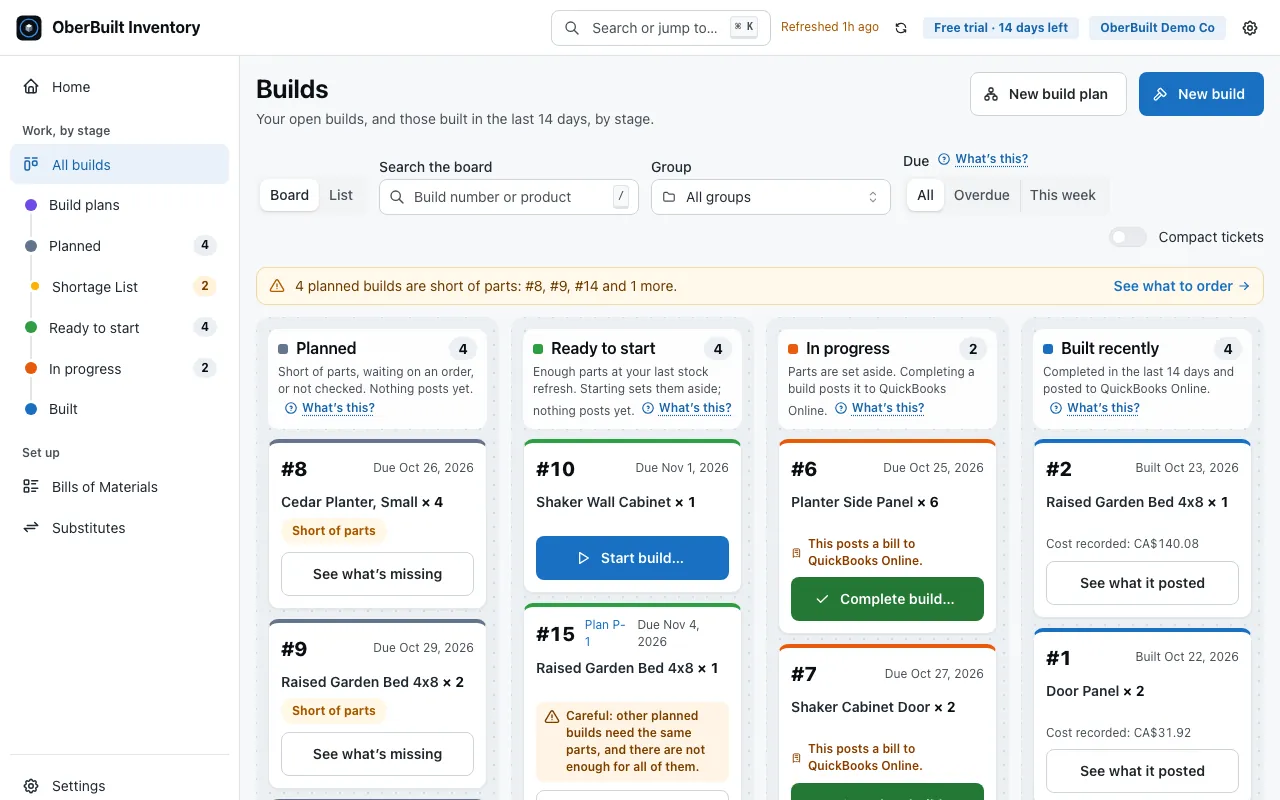
Plan a build, start it, complete it. Components come out of stock and finished goods go in, at the FIFO cost QuickBooks Online recorded.
- Starting a build sets its parts aside, so other builds do not count on them.
- Finish all of a build or part of it. What is left stays in progress as its own build.
- Print a pick list. One for each build, ready for the shop floor.
In QuickBooks Online: Completing a build posts one bill (see what it posts). Reversing a build whose finished goods are still on hand returns the components at the cost the build was made at, not today's cost. Un-building can also change the cost QuickBooks Online recorded for later sales or adjustments of the items involved, so check the Inventory Valuation Detail report in QuickBooks Online afterwards.
Any time
Your data is yours to take
Export bills of materials, builds and items as CSV at any time, including for 90 days after a trial or subscription ends.
- Bills of materials with their groups, output per run and scrap.
- Builds with their dates, costs and substitutions.
- A cell a spreadsheet would run as a formula is written as text.
In QuickBooks Online: Exports read our copy of your data. Nothing is written.
Before you rely on it
- Works with QuickBooks Online Plus or Advanced, with "Track inventory quantity on hand" turned on in its settings.
- OberBuilt Inventory is in beta. It writes builds into your QuickBooks Online books, so check its results there before you rely on them (Terms, section 3).
- It does not do work orders, purchase planning, scheduling, lot or serial tracking, barcode scanning, shipping or multiple warehouses.